
Run accountable projects with full document control
Manage RFIs, submittals, drawings, and revisions in one place. Every change is tracked, every approval recorded, so nothing slips through the cracks.
Construction-grade controls, sized for service teams
Construction-grade governance (RFIs, submittals, drawings, change logs, approval trails) has historically belonged to platforms built for general contractors with seven-figure software budgets. Field service teams need the same accountability without the rigidity or the price tag.
ServiceIQ puts those controls inside the projects and jobs your teams already work in. Revisions are preserved, approvals are timestamped, every property change is logged with old and new values, and external reviewer activity is captured against a unique token.
The strategic case for tighter governance
Most disputes on a service project trace back to the same three failures: an unanswered question, an outdated drawing on site, or an approval no one can prove happened. Each one costs hours, sometimes days, and erodes trust with the customer.
Treating governance as a first-class part of the platform, not a bolt-on document folder, shortens the loop between a question being raised and an answer being acted on. It also gives every party a defensible record when something is later challenged.
- Faster approvals: Reviewers receive scoped links and respond inside one screen: no email threads to chase.
- Fewer disputes: Property-level audit trails settle "who changed this and when" in seconds.
- Defensible records: Append-only audit events and revision-numbered files protect against retroactive edits.
- Aligned teams: Office staff, field crews, and external reviewers all reference the same current revision.
RFI Management That Keeps Questions Answered
Submit, route, and resolve Requests for Information from one screen. Priority badges, due dates, and threaded responses keep every stakeholder on the same page.
Priority & Status Tracking
Tag RFIs by priority and status: see what needs an answer today vs. next week.
Threaded Responses
Capture every response in a single thread with timestamps and authorship.
Link to Jobs
Attach RFIs to specific jobs so field teams see open questions in context.
Head office, contractors, and clients each get their own view
A project rarely has just one audience. Head office needs full visibility across every RFI, submittal, and revision. Contractors need a focused list of what's assigned to them today. Clients and consultants need a clean way to review and approve specific items without seeing everything else.
ServiceIQ ships a tailored dashboard for each role. Head office sees the full project and job governance tabs. Contractors land on a stripped-back schedule and document set scoped to their assignments. Clients receive token-based guest links that open only the items meant for them, no logins to manage, no internal data exposed.
The result: each profile interacts with the same underlying records, but through an interface that matches their job. Coordination overhead drops because nobody is wading through information they don't need.
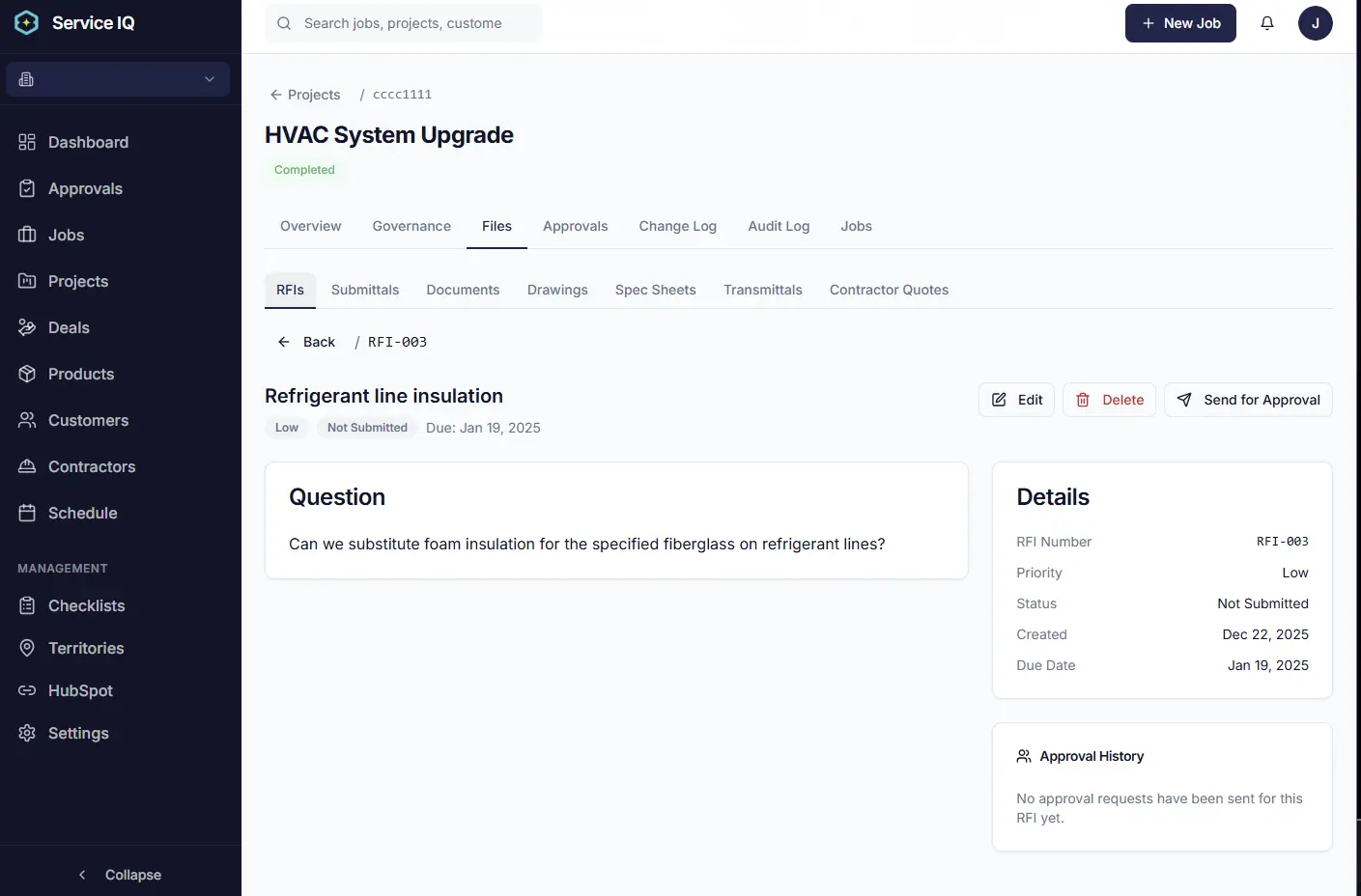
From question to resolved: with an audit trail
Each RFI carries a priority, status, due date, assigned responder, and a threaded response history. When an RFI is sent for external approval, the guest reviewer's response, whether a comment or an uploaded file, is attached back to the record automatically.
- Detail page with full history: See the question, every response, status changes, and linked approvals on one screen.
- Job linking: Mark an RFI as job-relevant and it appears in the job's governance tabs.
- External approval routing: Send an RFI to a landlord, GC, or consultant via secure guest link.
- Secure deletion: Soft-deletion pattern preserves audit history while removing from active views.
How an RFI moves through the system
Every RFI follows a defined state progression: Draft → Open → Responded → Closed. Drafts stay private to the author until submitted. Once Open, the assigned responder and any watchers are notified, the due date starts counting, and the RFI surfaces on the relevant job's governance tab.
Responses can be added internally or captured from an external reviewer through a guest approval link. When an external response arrives, the system records the responder's email, timestamp, and any uploaded file against the RFI's history before flipping its status to Responded. Closure is an explicit action, usually performed by the original author or a project manager, so an RFI never auto-closes on a timer.
- Assignment & due dates: Each RFI has one accountable responder and an optional due date that drives notifications.
- External response routing: Guest replies write back as a numbered thread entry sourced as "guest approval".
- Soft deletion: Deleting an RFI removes it from active lists but preserves the underlying audit record.
- Job context preserved: When linked to a job, the RFI appears in that job's governance tab for the field team.
Submittal Workflows With Revision History
Every submittal carries its full revision history. Compare versions, track reviewer comments, and know exactly which version was approved.
Revision Tracking
Each upload becomes a numbered revision, never lose an earlier version.
Reviewer Comments
In-line review notes tied to specific revisions and reviewers.
Approval Trail
Timestamped records prove when and by whom each submittal was approved.
How revisions, reviews, and approvals interlock
A submittal is a container; the file attached to it is the first revision. Every replacement upload creates a new numbered revision against the same submittal record. The original is never overwritten. The latest revision is presented as the current set across the platform, while older revisions remain accessible for comparison and reference.
Reviewer comments are scoped to the revision they were made against, so feedback on Rev 2 stays attached to Rev 2 even after Rev 3 is uploaded. Approval status applies to the specific revision approved, which means uploading a new file resets the approval state and prompts a fresh review cycle. Each revision also carries a source attribution (in-app upload, guest approval response, or email) so it's clear how it entered the system.
- Revision numbering: Sequential, immutable, and tied to the parent submittal: no manual versioning required.
- Comment scope: Comments anchor to the revision they were left on, preserving review context over time.
- Approval propagation: A new revision invalidates prior approval: re-approval is explicit and timestamped.
- Latest-revision default: Field teams and reviewers always land on the current revision unless they choose otherwise.
- Source attribution: Every revision records whether it came from in-app, guest response, or email intake.
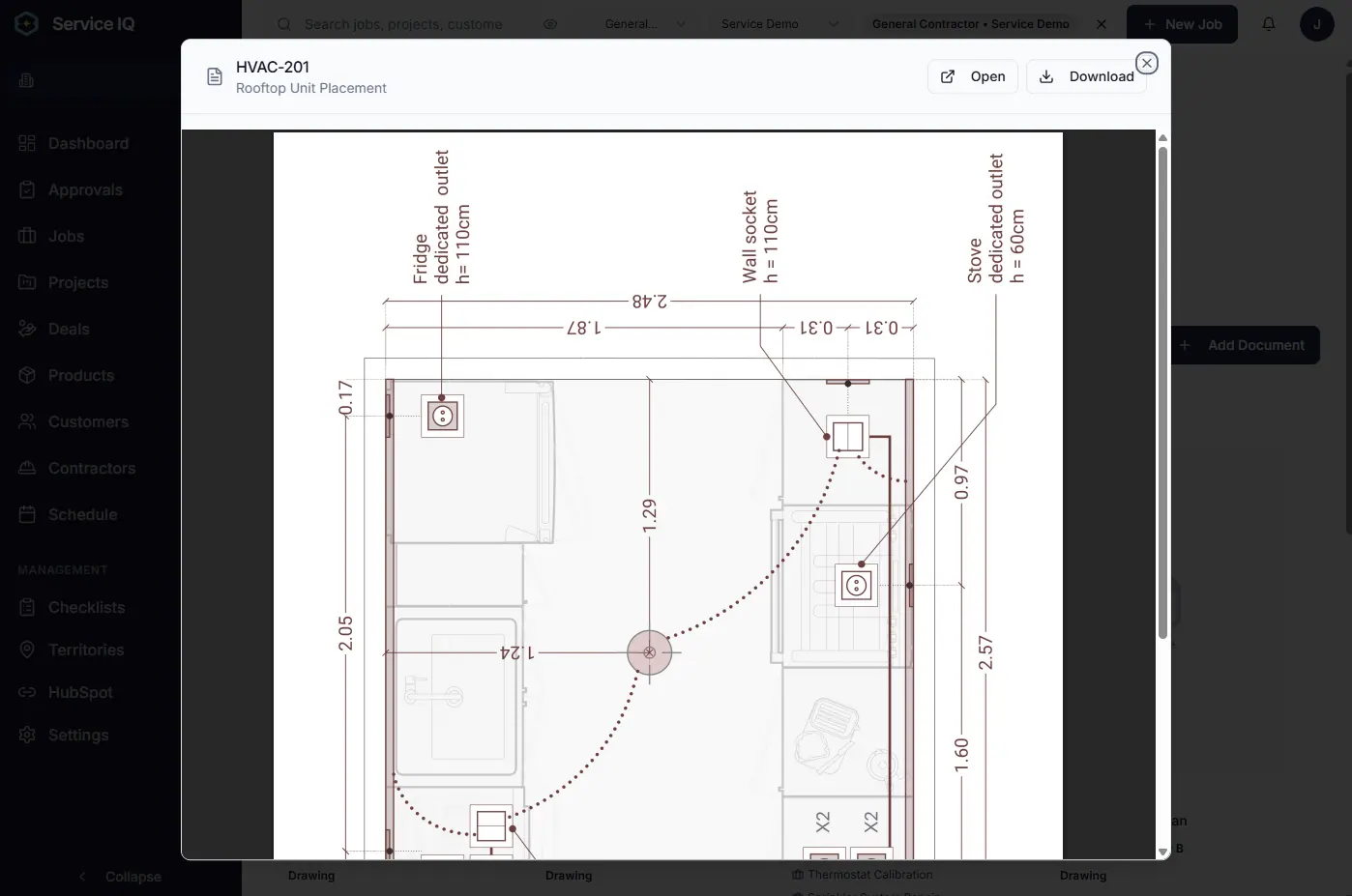
Drawings and spec sheets, version-controlled by default
The Project Files area separates content into Documents, Drawings, and Spec Sheets based on document type. Drawings and spec sheets get their own dedicated tabs with discipline filtering and the same revision-based document model used elsewhere in the platform.
- Discipline filtering: Filter by Architectural, Structural, MEP, Plumbing, and custom disciplines.
- Always-current set: Latest revision is the default, older revisions stay accessible for reference.
- Job linking: Mark a drawing as job-relevant to surface it on the technician's job page.
- Auto-versioned uploads: Replacing a file creates a new numbered revision; the original is preserved.
- Source attribution: See whether a revision came from in-app upload, guest approval response, or email.
Versioning and Document Lifecycle
Upload once, version forever. Documents track every replacement with attribution, source, and notes.
Auto-Versioned Uploads
Replacing a file creates a new revision: the original is preserved.
Source Attribution
See whether a revision came from in-app upload, guest approval response, or email.
Permission-Aware
Role-based access controls who can upload, replace, or download.
Every job has its own governance dashboard
Open any job and you'll find a unified governance interface with tabs for RFIs, Submittals, Documents, Drawings, Spec Sheets, and Contractor Quotes, each filtered to the items linked to that job. Field teams work from the job they're standing on, not from the project tree.
- Unified tabs: RFIs, submittals, documents, drawings, specs, and quotes in one tab strip.
- Job-relevant only: Only items explicitly linked to the job appear, keeping the view clean.
- Inline expansion: Expand any RFI or submittal in place: no page jumps.
- Linker dialogs: Quickly attach existing project items to a job from a searchable list.
Complete Audit Trails for Every Project
Property-level change tracking on projects, jobs, and documents. Answer 'who changed this and when' instantly.
Property-Level Logging
Every field change is captured with old/new values and the user responsible.
Tamper-Evident
Audit events are append-only. They cannot be edited or deleted by users.
Exportable
Pull audit logs for compliance, disputes, or insurance claims.
Guest approvals with scoped, single-purpose access
Send an RFI, submittal, or drawing to a landlord, consultant, or GC without creating an account for them. ServiceIQ generates a secure, single-purpose token link, tracks views, captures their decision and uploaded files, and writes the response back into the document's revision history.
- Token-based access: Each recipient gets a unique, expiring link, no shared credentials.
- Decision capture: Approve, approve as noted, request revision, or reject: with comments and file uploads.
- Cross-navigation: When a guest has multiple pending items, they can switch between them in one session.
- Response → revision: Uploaded files become new document revisions, sourced as "guest approval".
- Batch packets: Bundle multiple items into one approval packet to streamline reviewer effort.
Discover Other Features
Explore the rest of the ServiceIQ platform.
Job Management
Scheduling, kanban pipelines, time tracking, and customer updates.
Learn moreTeam Coordination
Contractors, multi-user assignments, roles, and partner access.
Learn moreAdditional Capabilities
Territories, dashboards, custom fields, search, and imports.
Learn moreHubSpot Integration
Bi-directional sync for deals, contacts, line items, and contractors.
Learn moreBring Order to Project Documentation
Stop chasing emails and lost drawings. Start running governance the way modern field service teams do.